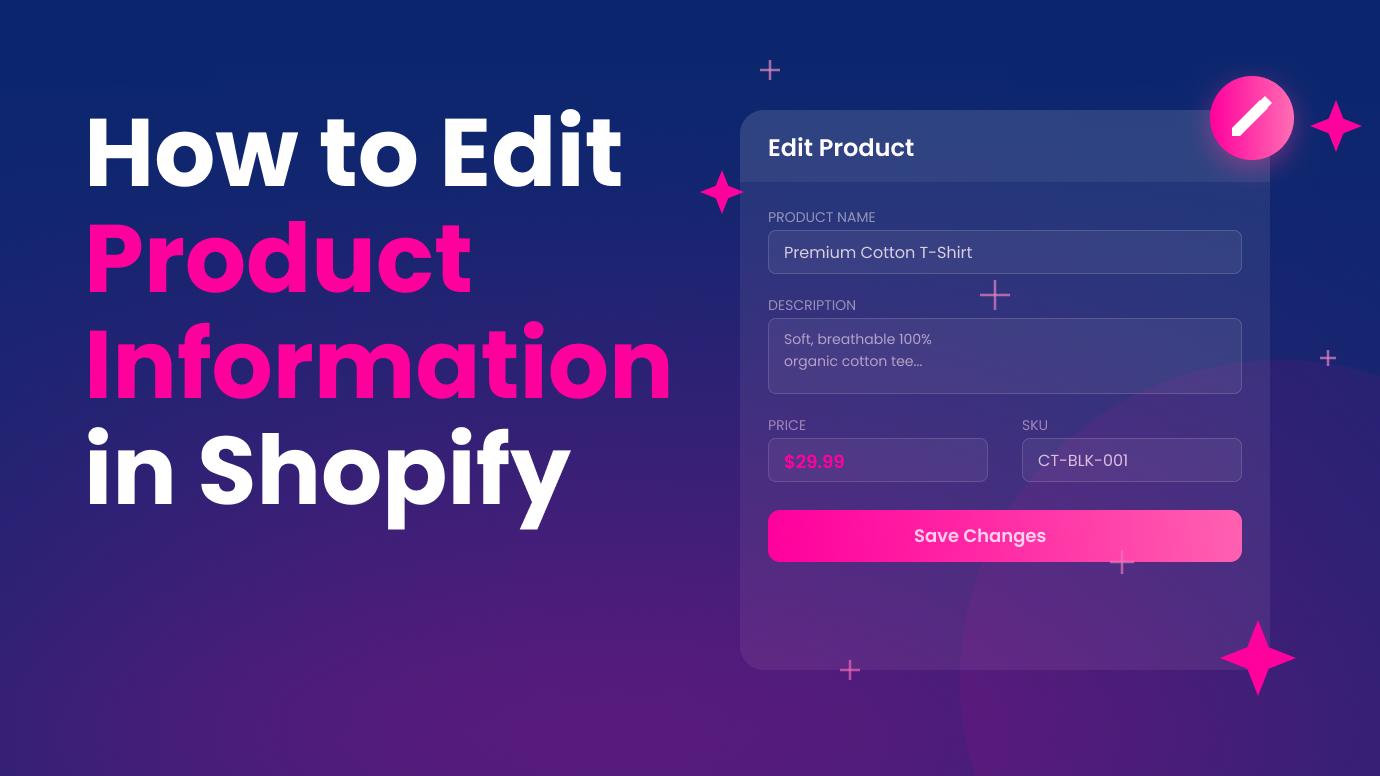
Shopify has two places where product content lives: the Product Editor and the Theme Editor. They do different things. Using the wrong one is how beginners accidentally break their store layout or overwrite content that should be dynamic.
The Product Editor controls what a specific product says (title, description, images, price, SEO). The Theme Editor controls how all product pages look (layout, sections, design). Metafields add custom data like specifications or care instructions to individual products.
Edit product content in the Product Editor. Edit page layout in the Theme Editor. Do not cross the two. CreateMyStore sets up product content, page layouts, SEO fields, and conversion tools together during the build so nothing is misconfigured from the start.
Two Editors, Two Very Different Jobs
One of the most common beginner mistakes in Shopify is editing product information in the wrong place.
Shopify has two main areas where product content lives: the Product Editor and the Theme Editor. They look similar at first glance. But they control completely different things. Confusing them is how most beginners accidentally break their store layout, overwrite dynamic content, or spend hours trying to fix something that was never broken.
Why this matters: If you edit content in the wrong editor, you can accidentally change every product page in your store at once. Understanding the difference between these two tools saves hours of frustration and prevents costly mistakes.
This guide explains what each editor controls, when to use which one, what metafields are, and how to avoid the mistakes that cause the most frustration for new Shopify merchants.
The Product Editor
The Product Editor is where you manage the actual content of each individual product. You access it from your Shopify admin by going to Products and clicking on any product in your catalog.
What You Can Edit Here
- Product title.
- Product description (the main text customers see on the product page).
- Price and compare-at price.
- Product images and media.
- Variants like size, color, and material.
- SKU and barcode.
- Inventory quantity.
- SEO title and meta description.
- Product status (active or draft).
When to Use It
Use the Product Editor any time you want to change what a specific product says, costs, or looks like. If you want to update a product title, rewrite the description, change the price, add new images, adjust variant options, or update SEO metadata, this is the right place. If you imported products from a supplier page, this is where you improve their content. See our guide on how to import products from AliExpress with AI for a faster approach.
The Product Editor changes content for one product only. It does not affect other products or the overall page layout.
Why this matters: Every change you make in the Product Editor is scoped to that single product. You cannot accidentally break other product pages from here. That makes it the safest place to make content updates.
Mistakes to Watch For in the Product Editor
Writing descriptions in HTML mode without realizing it. The Shopify product description field has a rich text editor and an HTML mode. Beginners sometimes accidentally switch to HTML mode and start typing plain text. The result is broken formatting, stray tags, and a product page that looks messy. Always use the rich text editor unless you specifically need HTML.
Uploading images that are too large. High resolution images are great for quality but terrible for page speed. If your product images are 5MB each, your pages will load slowly and visitors will leave. Compress images before uploading. Aim for under 500KB per image while maintaining good visual quality.
Leaving the SEO fields blank. Every product has a SEO title and meta description field at the bottom of the editor. Most beginners skip these. That means Shopify auto-generates them from the product title and description, which is almost never optimized for search. Take 30 seconds to write a clear, keyword-relevant SEO title and description for each product.
The Theme Editor
The Theme Editor controls how your store looks. You access it from Online Store then Customize in your Shopify admin. It manages the layout, sections, and visual design of every page type in your store.
What You Can Edit Here
- Which sections appear on each page type (homepage, product page, collection page).
- The order and arrangement of those sections.
- Colors, fonts, and spacing.
- Header and footer layout.
- The style of buttons, including the Add to Cart button.
- Whether specific elements like reviews or trust badges appear on product pages. See our post on 7 trust signals every Shopify store needs to know which ones matter most.
- Announcement bars, banners, and promotional sections.
When to Use It
Use the Theme Editor when you want to change the layout or appearance of your pages across the entire store. If you want to add a new section to all product pages, rearrange where elements appear, change how trust badges display, or adjust the overall design, this is where you do it.
The Theme Editor changes the template that all products (or all pages of that type) share. It does not change the content of individual products.
Why this matters: Every change in the Theme Editor applies to every page that uses that template. One wrong edit here affects your entire catalog, not just one product. That is why it is critical to understand the difference before making changes.
Mistakes to Watch For in the Theme Editor
Trying to edit individual product content in the Theme Editor. This is the single most common and most damaging beginner mistake. A merchant clicks into the product page template, sees what looks like their product description, and starts editing it. But they are not editing one product. They are editing the template that applies to every product in the store. This can overwrite dynamic content blocks and break the connection between the template and individual product data.
Replacing dynamic content with static text. Some theme sections pull content dynamically from the product data (title, description, price). If you delete a dynamic block and type static text instead, that text will appear on every product page. Your product pages will all show the same title or description regardless of which product the visitor is viewing.
Adding too many sections without checking mobile. The Theme Editor shows a desktop preview by default. Beginners add sections, images, and text blocks that look great on desktop but create an extremely long, cluttered page on mobile. Always preview your changes on mobile before publishing. Most of your traffic will come from phones.
What Are Metafields and When Do They Matter
Metafields are custom data fields that let you add extra information to products beyond the standard fields. They are how Shopify handles structured product data that does not fit neatly into the title, description, or variant options.
Why this matters: Many Shopify themes include sections for specifications, care instructions, or sizing charts. These sections are powered by metafields. If you do not know what metafields are, you will see empty sections on your product pages and not understand why.
Where to Find Metafields
Metafields are configured in Settings then Custom data in your Shopify admin. Once you define a metafield (like "Care Instructions" or "Specifications"), it appears at the bottom of the Product Editor for each individual product.
When Beginners Encounter Them
Most beginners do not need metafields when starting out. You will encounter them if your theme has placeholders for custom content like a specifications tab, a care instructions section, or a delivery information panel on the product page.
If those sections look empty on your product page, the theme is probably looking for metafield data that has not been filled in. The section exists in the template, but the data it needs has not been entered for that specific product.
Mistakes to Watch For With Metafields
Deleting the theme section instead of filling in the data. When a metafield-powered section appears empty, beginners often remove the section from the Theme Editor. This removes it from every product page. The better approach is to fill in the metafield data in the Product Editor for each product that needs it.
Creating metafields you do not need yet. Metafields are powerful but they add complexity. If you are just launching your store, focus on the standard product fields first. Metafields become useful as your store grows and you need more structured data, but they are not required for launch.
The Safe Editing Path for Beginners
Here is the rule that prevents most layout-breaking mistakes:
If you want to change what a product says, go to the Product Editor.
If you want to change how the product page looks, go to the Theme Editor.
Do not cross the two.
When in doubt, follow this process:
- Make one small change at a time.
- Preview the change before saving.
- Check how it looks on both desktop and mobile.
- If something breaks, undo immediately instead of trying to fix it by making more changes.
Shopify's Theme Editor has a preview mode that lets you see changes without publishing them live. Use it every time.
Why this matters: The undo button is your best friend. Most store-breaking mistakes happen when a beginner makes one wrong edit, panics, and makes five more edits trying to fix it. One change at a time with a preview keeps your store safe.
Common Mistakes That Break Stores
These are the mistakes that cause the most damage and frustration for new Shopify merchants. Each one is avoidable once you understand the two-editor system.
- Editing the template thinking you are editing one product. This overwrites dynamic content for every product in your store. Always check whether you are in the Product Editor (Shopify admin, Products) or the Theme Editor (Online Store, Customize) before making changes.
- Replacing dynamic blocks with static text. If you type over a dynamic content block in the Theme Editor, every product page will show the same text. If a section says "dynamic source" or shows a database icon, leave it alone unless you understand what you are replacing.
- Skipping mobile preview. A product page that looks clean on desktop can be unusable on a phone. Most of your visitors will browse on mobile. Check every change on both screen sizes before publishing.
- Deleting empty metafield sections. Empty sections usually mean the metafield data has not been filled in, not that the section should be removed. Deleting it from the Theme Editor removes it from every product page. Fill in the data instead.
- Ignoring SEO fields on product pages. Shopify auto-generates SEO titles and descriptions that are rarely optimized. Taking a few seconds to write your own SEO title and meta description for each product helps your pages rank in search and get more clicks.
Many of these mistakes overlap with the reasons visitors leave without buying. See our breakdown of 5 reasons visitors leave your store and how to fix each one.
How CreateMyStore Sets This Up for You
If you are building a new store and want to skip this learning curve entirely, CreateMyStore handles the entire setup during the store build.
- Product descriptions are written and placed in the Product Editor. Each product gets an original, benefit-driven description that is ready to convert visitors into buyers.
- Page layouts are configured in the Theme Editor. Sections are arranged for conversion with trust badges, reviews, and upsells already in place.
- SEO titles and meta descriptions are generated for every product. No blank fields. No auto-generated text. Every page is optimized for search from day one.
- Vitals apps are installed and configured. CreateMyStore sets up 40+ conversion tools including trust badges, urgency timers, email capture, and product reviews. Everything is connected and ready to go.
You can still edit everything after the build. But you start with a store where product content and page layout are already in the right places. No confusion about which editor to use. No accidental template overwrites. No broken pages.
FAQs
What happens if I accidentally edit the template instead of the product?
If you changed the theme template, those changes affect every product page. Go back to the Theme Editor, undo your changes, and make the edit in the Product Editor instead. If you cannot undo, you may need to restore a previous version of your theme from the theme library.
Can I have different layouts for different products?
Yes. Shopify supports multiple product page templates. You can create a custom template in the Theme Editor and assign it to specific products. This is an intermediate technique. Most beginners should start with a single template and customize it later.
Do I need metafields to launch my store?
No. Metafields are optional. The standard product fields (title, description, images, price, variants) are enough to launch. Add metafields later when you need structured data like specifications, sizing charts, or care instructions.
Why do my product pages look different from the preview?
The Theme Editor preview shows a sample product. If that sample product has more images, a longer description, or more variants than your actual product, the preview will look different. Always preview with the actual product selected to see an accurate view.
How do I know if a section pulls from metafields?
In the Theme Editor, click on the section. If the content field shows a small database icon or says "dynamic source," it is pulling from a metafield or product data. If it shows a plain text box, it is static content that you can edit directly.
Can I permanently break my store by editing the Theme Editor?
No. Shopify keeps version history for your theme. If something goes wrong, you can restore a previous version from Online Store, then Themes, then the three-dot menu. But it is much easier to preview before publishing than to restore afterward.
What is the fastest way to get a store with everything set up correctly?
CreateMyStore builds your entire Shopify store with AI. Product content, page layouts, SEO fields, and conversion tools are all configured correctly during the build. You skip the setup and go straight to selling.
Start Editing With Confidence
Shopify gives you powerful editing tools. But those tools are split across two editors that do very different things. Understanding where to make each type of change is the single most important skill for managing your store without breaking it.
Product content goes in the Product Editor. Page layout goes in the Theme Editor. Metafields connect custom data to specific products. Follow that structure and your store will stay clean and functional as you grow.
If you want a store where all of this is set up correctly from the start, CreateMyStore builds it for you in minutes.