Summary:
Setting a Shopify store up by hand takes days of theme work, app installs, and product descriptions. An AI store builder does it in about four minutes. This guide walks all 12 steps on CreateMyStore — choosing how to start, picking a niche and banners, creating your Shopify account, approving Vitals, choosing products, generating the store, reviewing it, editing it in the right place, and going live.
I love building Shopify stores with an AI store builder. I've set stores up the manual way, and the theme setup, app installs, and product descriptions took me days before anything was ready to sell. An AI Shopify store builder does that work in about four minutes. You give it a niche, and it builds a finished store with a theme, logo, eight products, written copy, imported reviews, and 40+ conversion apps installed. I'll walk you through every step with CreateMyStore, from picking a niche to going live.
What are the key features of AI store builder
An AI Shopify store builder generates a complete store from a niche or a product list. The build includes the design, the branding, the product pages, written copy, imported reviews, and the apps a store needs to convert visitors into buyers. CreateMyStore, the builder I use in this guide, adds eight products with AI-written descriptions, an SEO title and description for every product, real customer reviews imported from AliExpress, product bundles, and 40+ conversion apps from Vitals.
An AI Shopify store builder gives you the foundation. Your judgment, your product testing, and your ongoing work on the store still decide whether it sells.
The generation itself is free. The store needs two subscriptions to stay live. Shopify hosts it, and Vitals includes the conversion apps. I cover both prices at the step where you meet them.
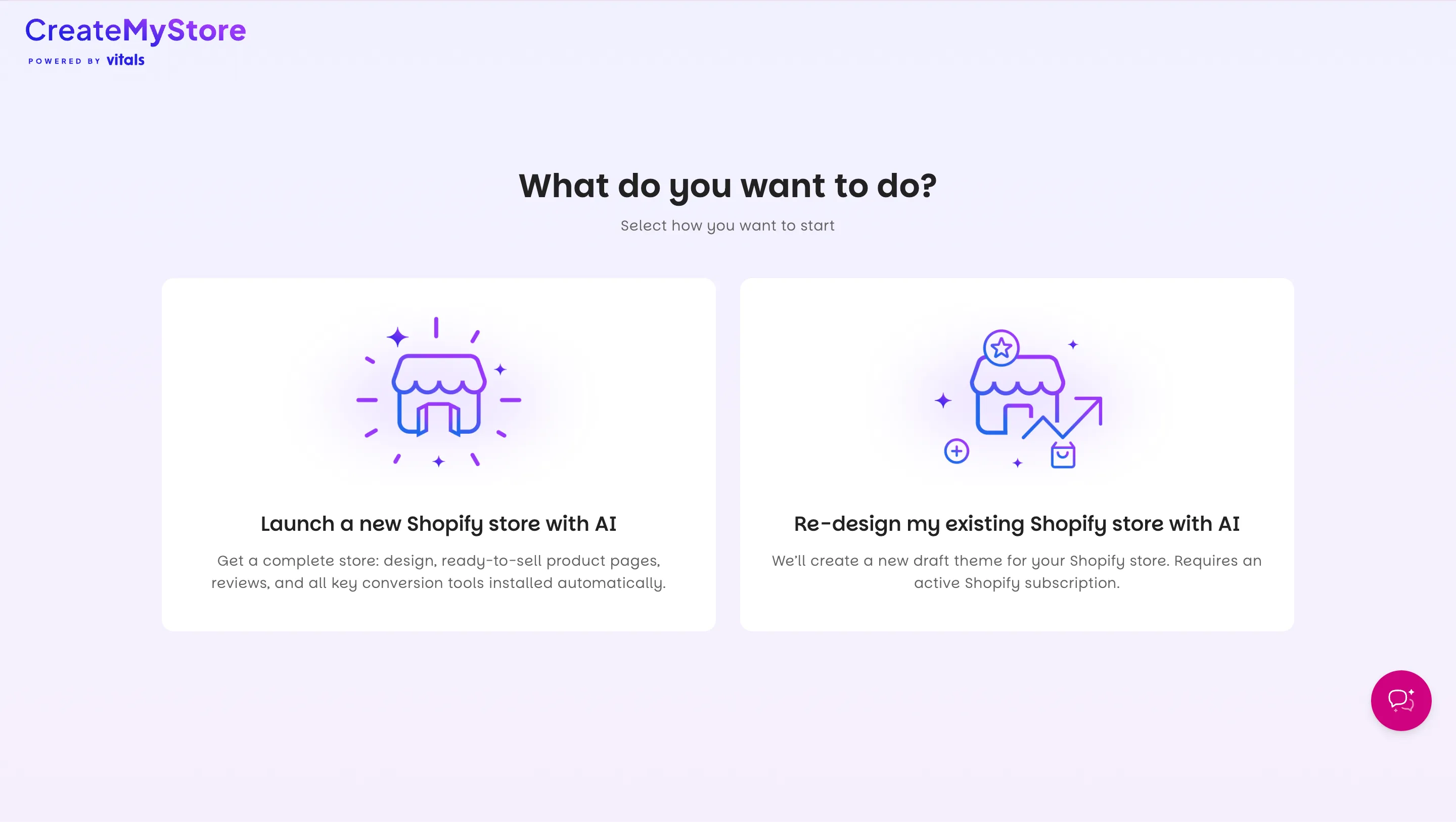
Step 1: Choose how you want to start
CreateMyStore builds a new store from scratch or redesigns one you already have. If you don't have a Shopify store, choose the first option. That's the flow this guide follows.
If you already have a store, choose "Re-design my existing Shopify store with AI." The redesign creates a new draft theme, so your live store stays untouched until you publish.
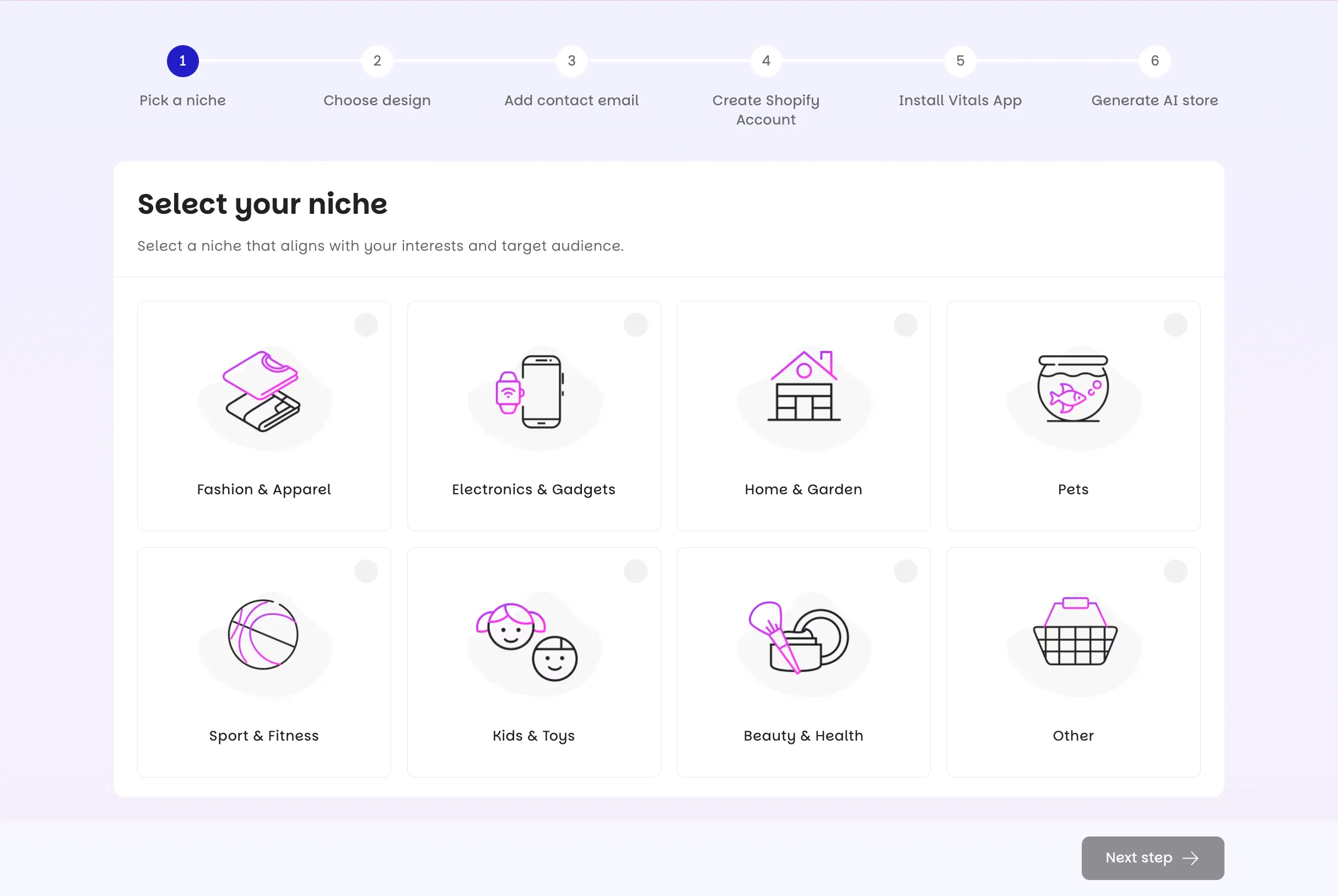
Step 2: Pick your niche
Your niche decides which products the AI recommends and how it designs the store. You can choose Fashion, Electronics, Pets, Beauty, Kids & Toys, Home & Garden, or Sport & Fitness. If none of those fit, or you haven't decided what to sell, choose Other.
Pick a niche you know something about, since you'll write ads and answer customer questions in it after launch.
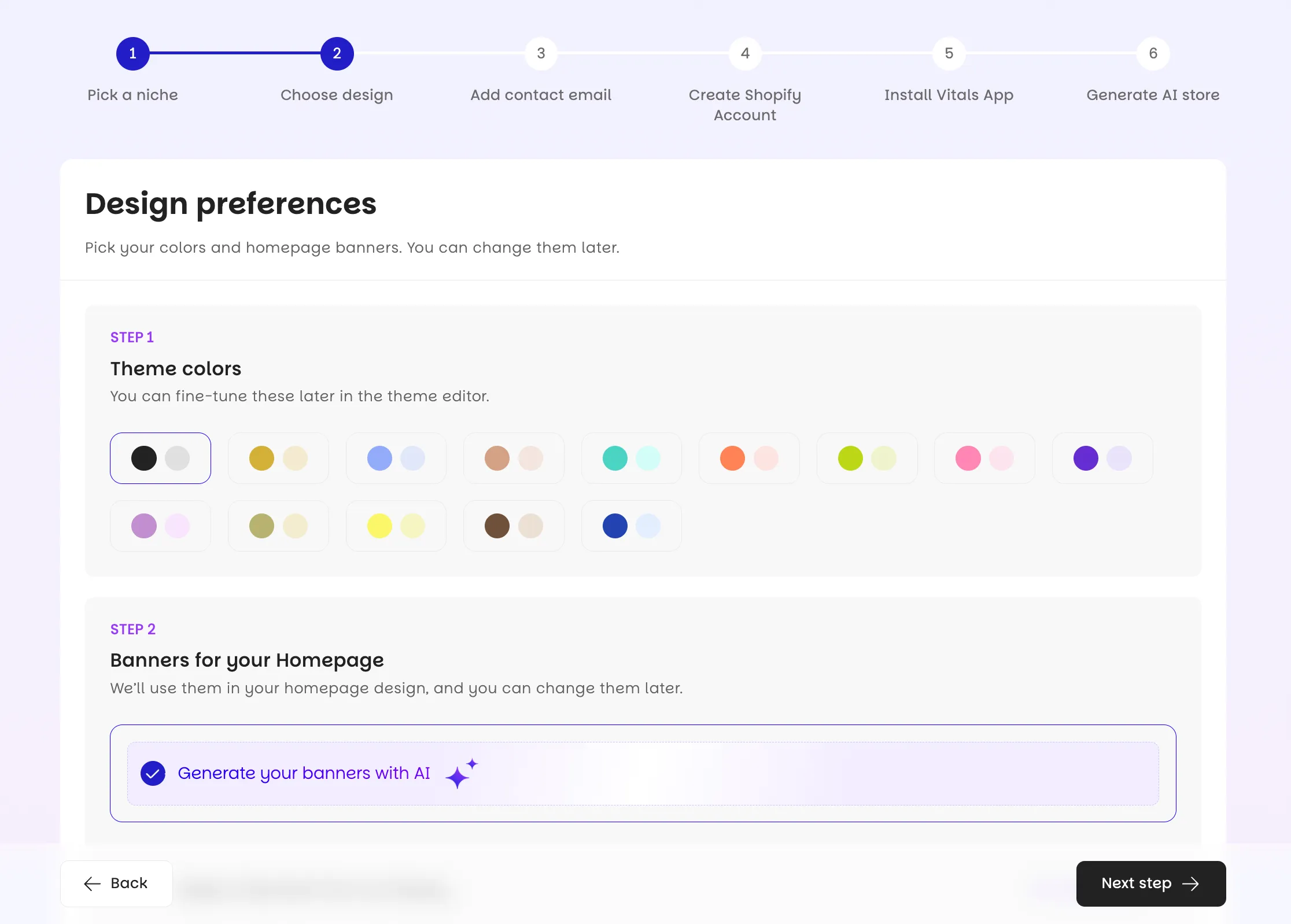
Step 3: Choose your banners
Banners are the large images at the top of your homepage. Choose "Generate banners with AI" and CreateMyStore creates images that match your niche.
You can swap banners later in the Theme Editor, so don't spend long here.
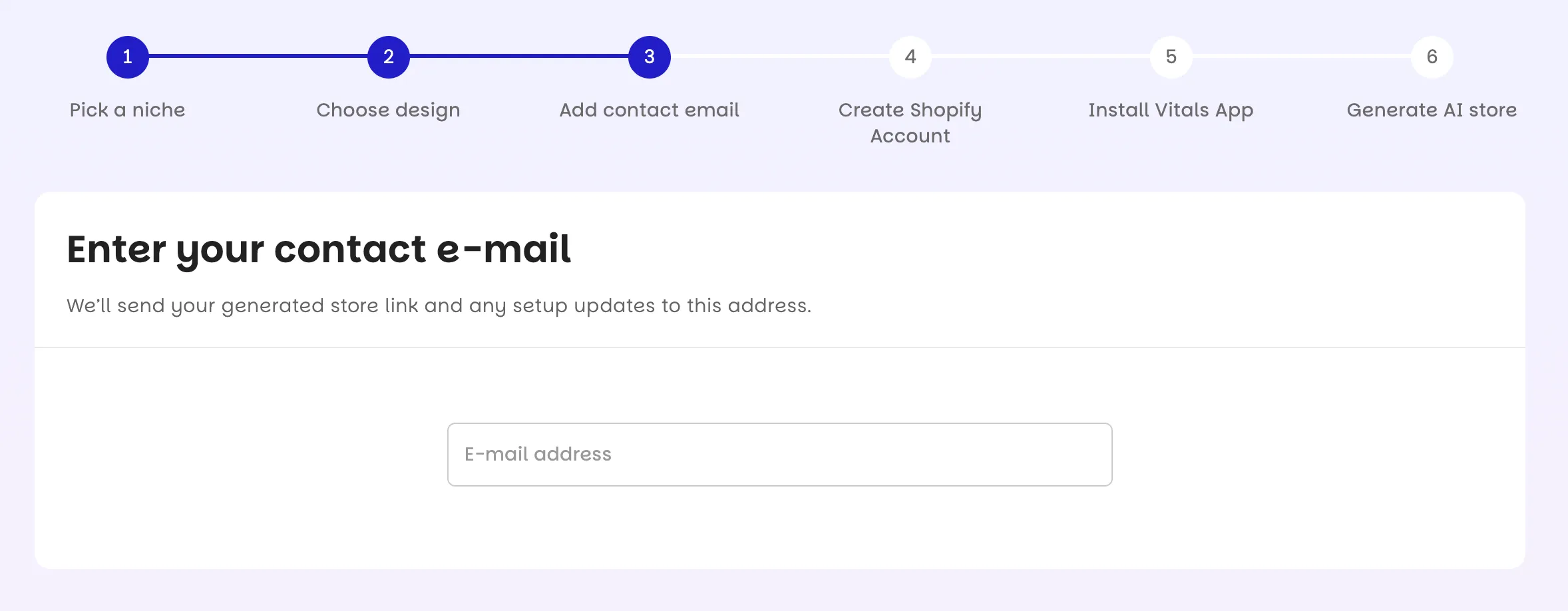
Step 4: Enter your contact email
CreateMyStore sends the link to your finished store to this address. Use an email you check, because that link is how you get back to the store.
Step 5: Create your Shopify account
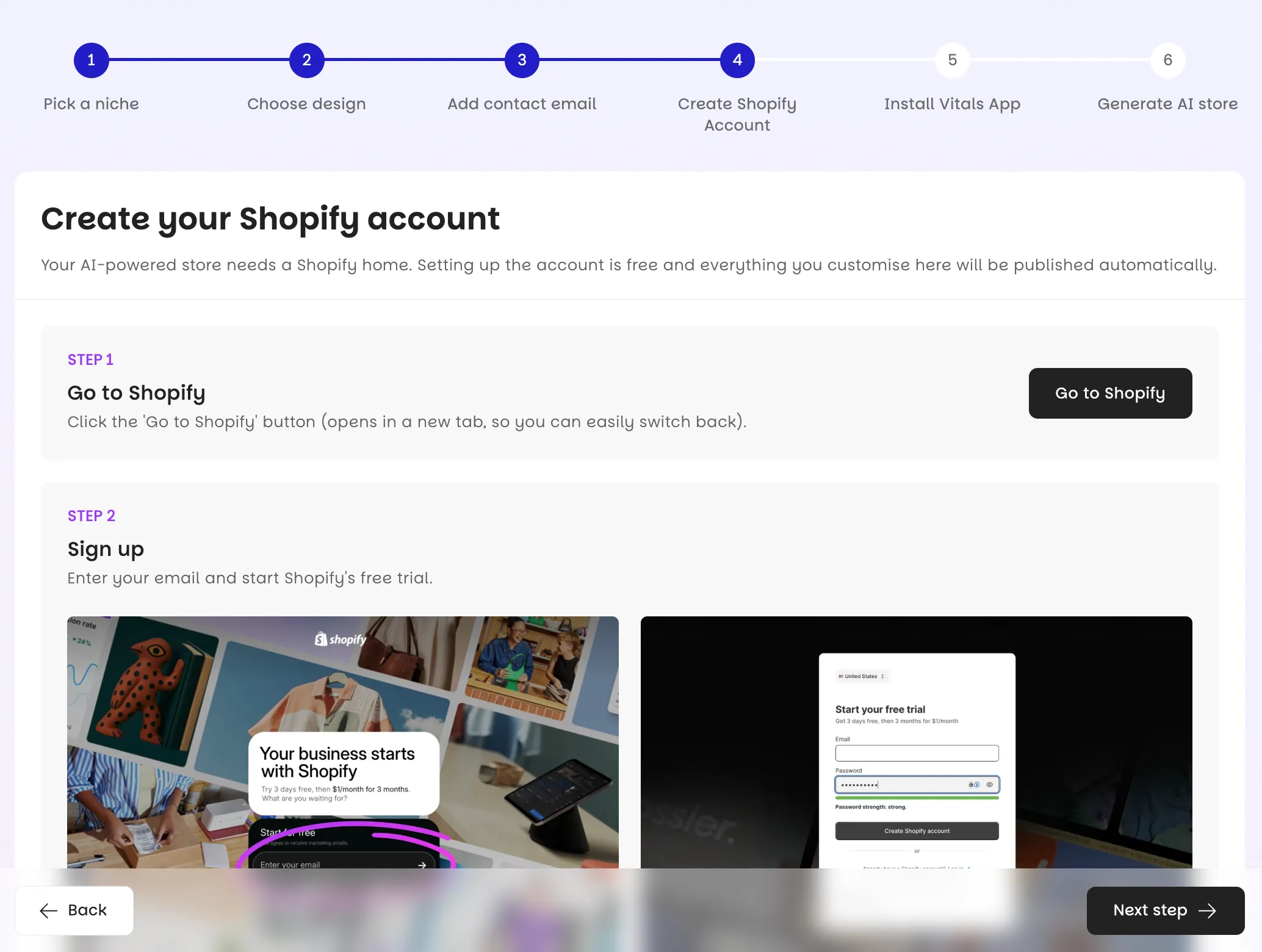
Shopify hosts your store, and the Basic plan is enough to start. Shopify gives you a 3-day free trial, then charges $1/month for the first 3 months. Add your card details, your business address, and a phone number. You can skip Shopify's customized setup questions.
Shopify doesn't charge your card when you create the store.
Step 6: Install Vitals and approve the plan
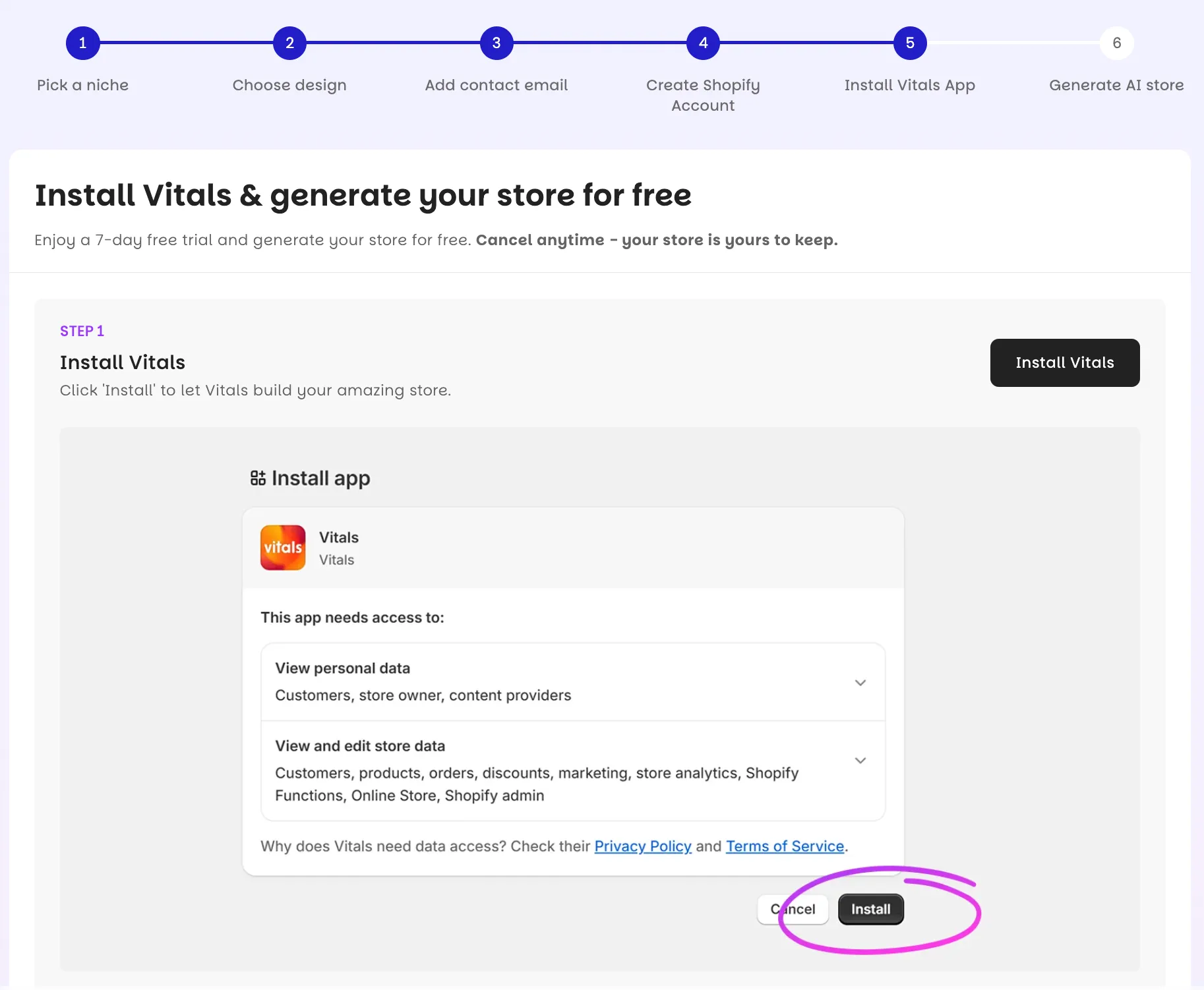
Vitals includes the 40+ conversion apps your store comes with, so CreateMyStore installs it next. Vitals has a 7-day free trial. The first paid month costs $1, then the plan costs $29.99/month. You can cancel anytime, and the generated store stays yours even if you do.
If you see a "missing card on file" error, Shopify is still processing your card. Wait 10 to 15 minutes and try again.
Step 7: Choose your products
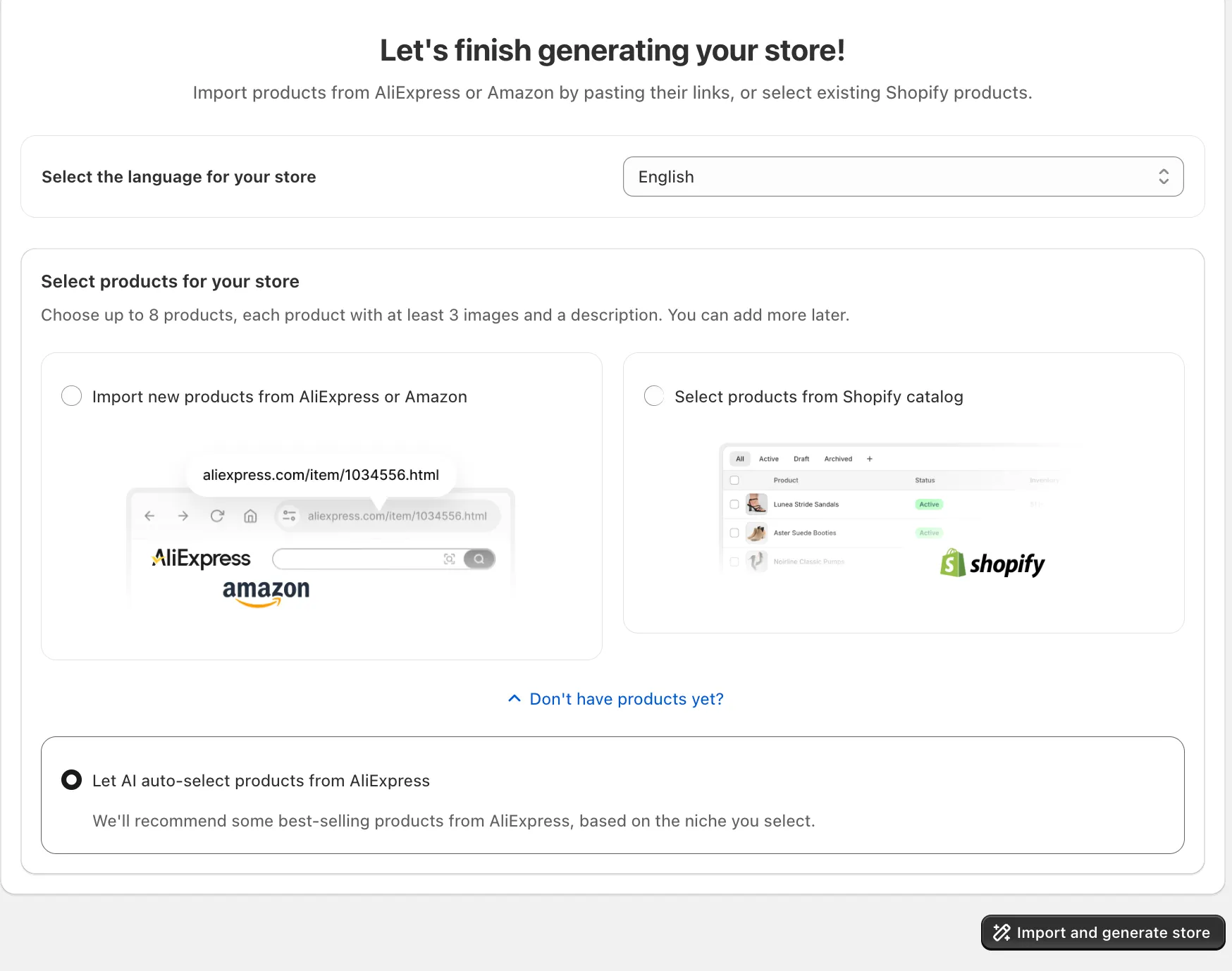
You can paste AliExpress product links, use products already in your Shopify catalog, or let the AI recommend products for your niche.
I paste eight AliExpress links, the setup CreateMyStore recommends. Each product comes in with clean images, variants, and a suggested selling price calculated from the product's cost.
Step 8: Generate your store
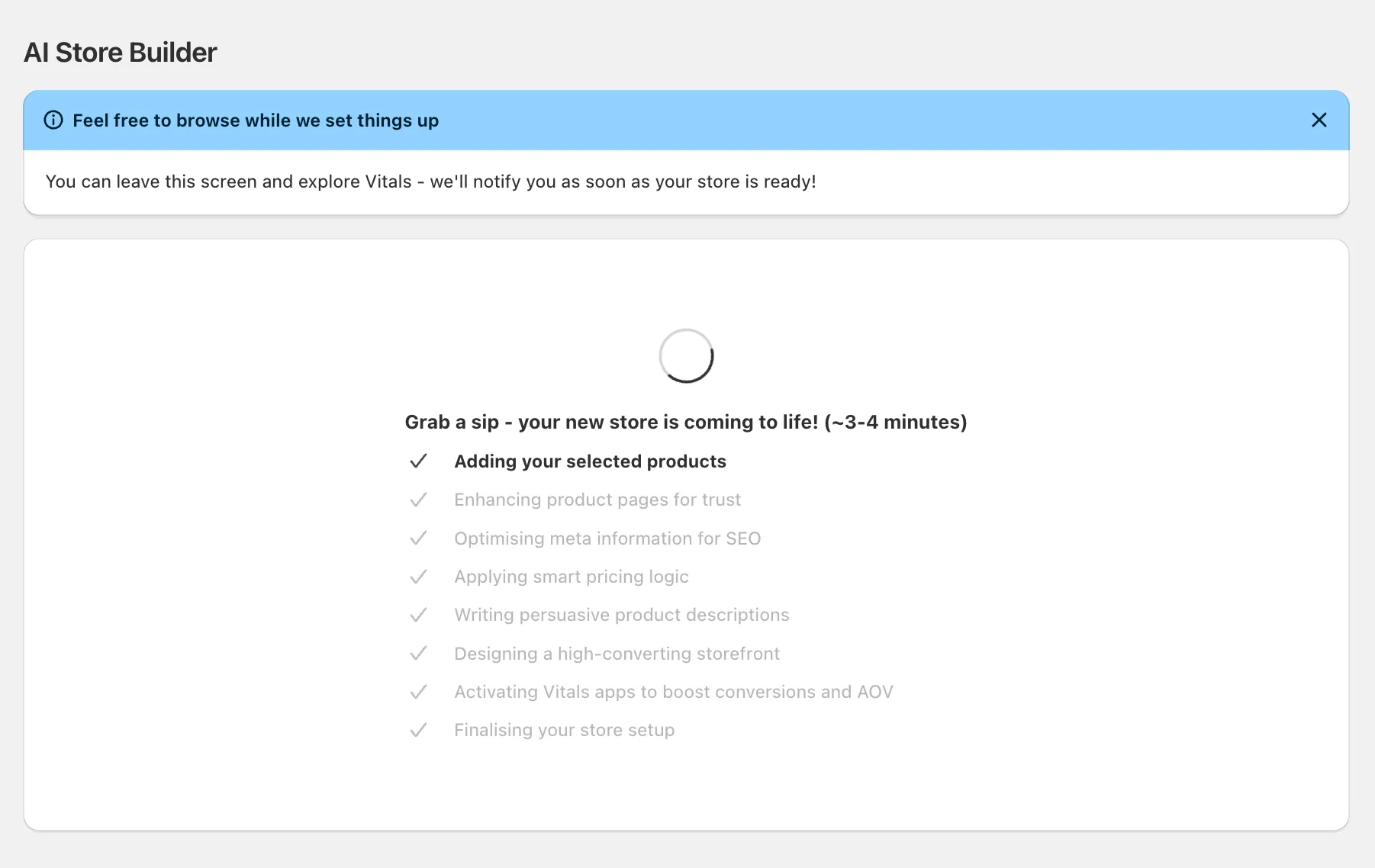
Click Generate Store and the AI builds everything in about four minutes. During the build it imports your products, writes their titles and descriptions, writes the SEO title and description for each one, and sets selling prices. It also designs the store and the product page structure, imports reviews, creates bundles, and configures the Vitals apps, including the lead capture popup and trust badges.
Keep the tab open while it works. If the build sits past 10 minutes, refresh the page.
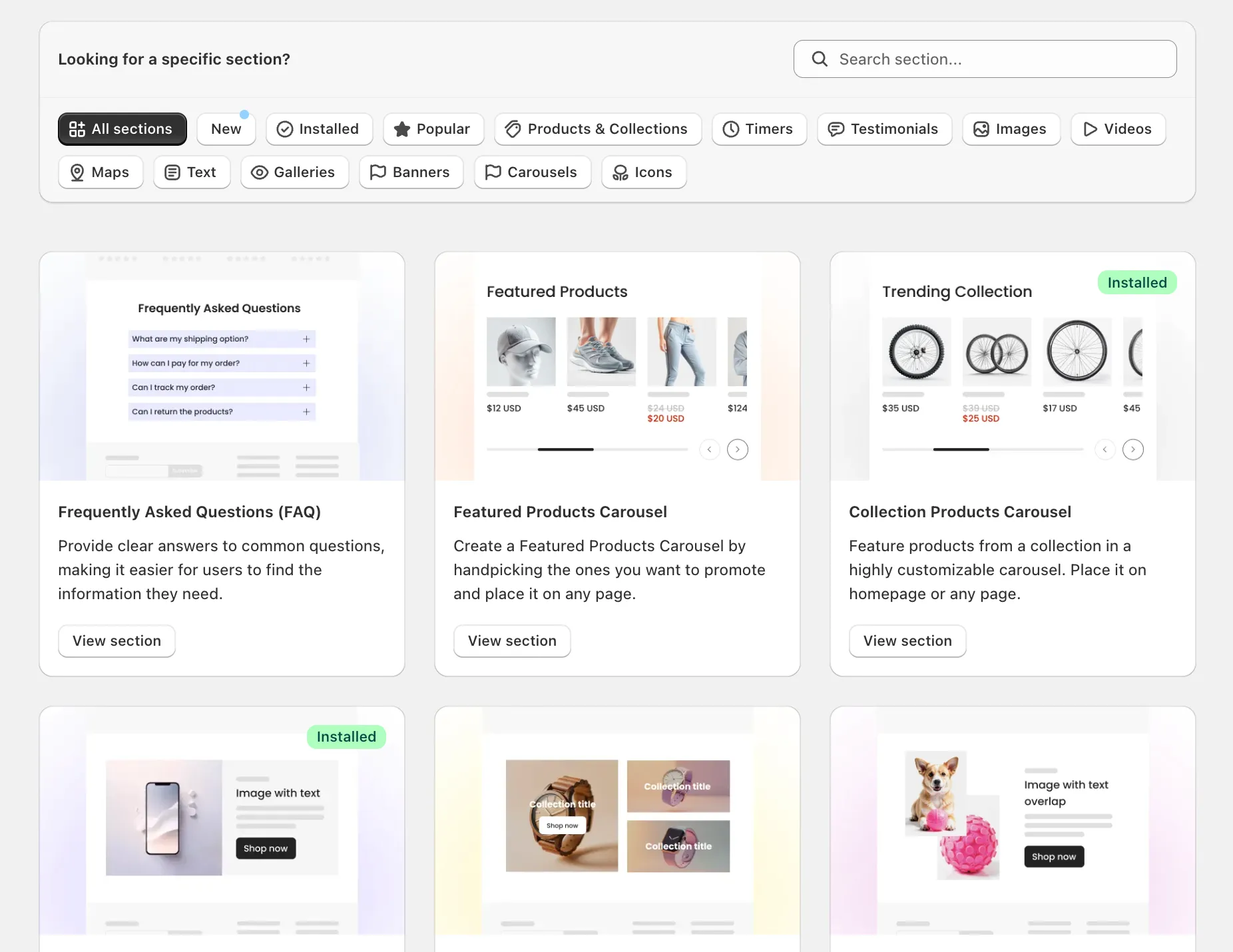
Step 9: Explore Vitals while the store builds
The four minutes are a good window to see what your store comes with. Open the Theme Sections library, which includes 40+ sections you can add to any page of your store. Then open the AI Marketing tools, which create video ads and product images you'll want once the store is live.
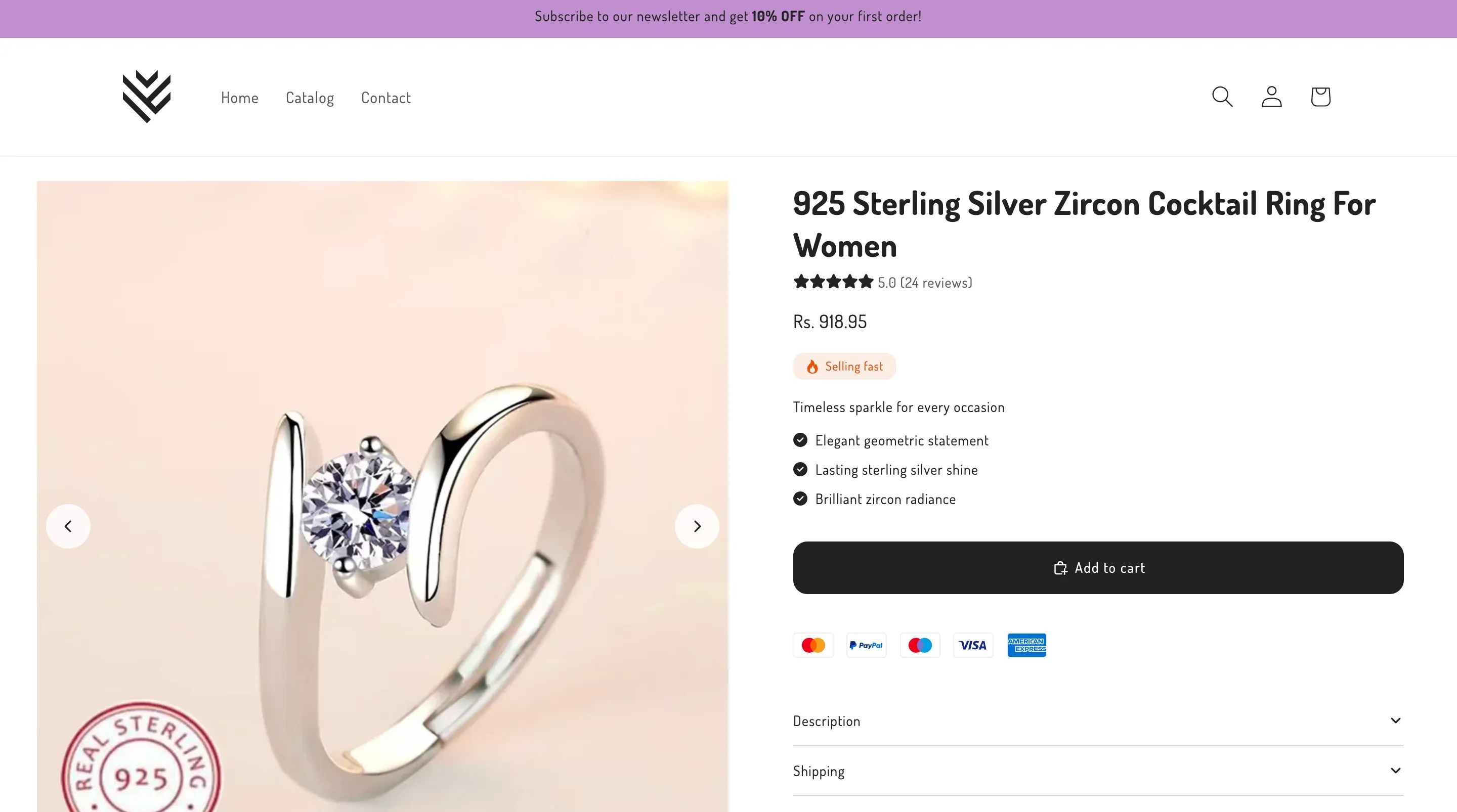
Step 10: Review your finished store
Walk the storefront the way a shopper would before you edit anything. Open a product page and check that the title reads clearly and the description sells the benefit. The page should include benefit sections, a bundle offer, a product-specific FAQ, a sticky add-to-cart bar, payment logos, and reviews.
Then check the homepage banners, the reviews carousel, and the featured products. Compare the finished product page with the raw AliExpress listing you pasted, because the difference shows you what the AI wrote for you.
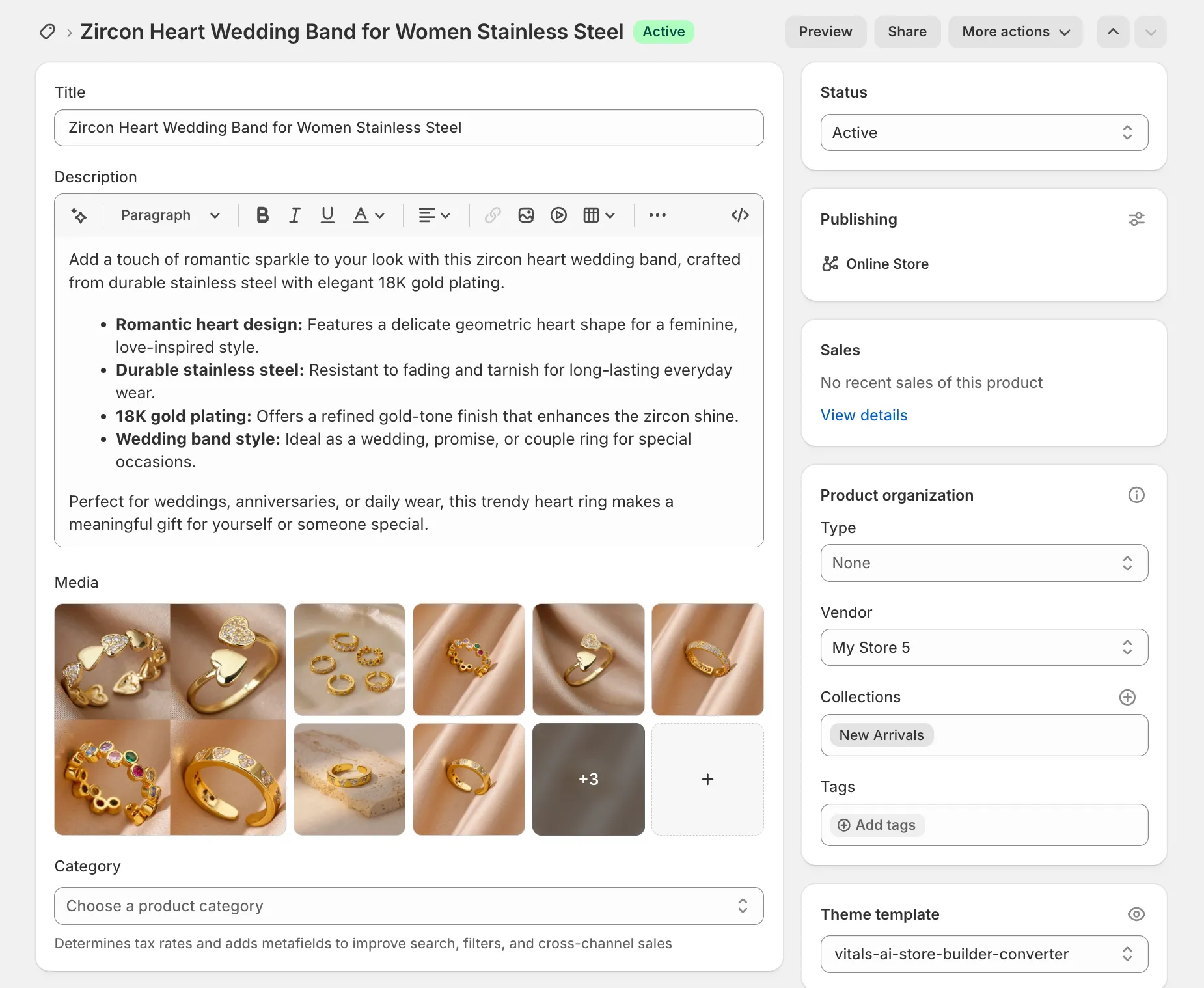
Step 11: Edit product info and design in the right place
Product content lives in the Shopify Product Editor, and layout lives in the Shopify Theme Editor. Keeping the two separate prevents broken templates.
Edit product text, images, benefits, and FAQs in the Product Editor. The AI stores that content in metafields, and each metafield fills a section on the page. Edit section order, colors, and structure in the Theme Editor.
Don't replace product content inside the Theme Editor, because a change there applies to every product on that template.
Step 12: Launch your store
Your store goes live when you remove Shopify's password protection. In the Shopify admin, open Online Store, then Preferences, uncheck "Restrict access to visitors with the password," and save. Connect a custom domain under Settings, then Domains.
After launch, you can import more products with the AI Product Page Generator, collect reviews from your first customers, and create ads with the AI Marketing tools.
Final thoughts
The setup that took me days now takes about four minutes. The work that matters starts after launch. Test your products, watch visitor recordings to see where shoppers hesitate, and keep improving your product pages as real orders come in.
Build your store free at Free AI Shopify Store Builder.
Frequently asked questions
Is CreateMyStore free?
CreateMyStore is free. The AI generation costs nothing, and you keep full ownership of the store. You pay for the two subscriptions behind the store. Shopify charges $1/month for the first 3 months after a 3-day trial, and Vitals costs $1 for the first month after a 7-day trial, then $29.99/month.
How long does the store take to build?
The store takes about four minutes to build. If the generation sits past 10 minutes, refresh the page. Don't close the tab or navigate away during the build.
Do I need technical or design skills?
You don't need technical or design skills. You pick a niche and a look, and the AI designs, writes, and configures the store. Everything stays editable afterward through the standard Shopify editors.
Can I add my own products?
You can add your own products by pasting an AliExpress or Amazon link, or manually like any Shopify product. The AI Product Page Generator rewrites the title and description, builds the page sections, and imports reviews in under 30 seconds.
Can I regenerate the store?
CreateMyStore generates each store once. Everything stays editable after the build, so refine the result in the Product Editor and Theme Editor instead of regenerating.
What happens if I cancel Vitals?
The store stays yours if you cancel Vitals. Uninstalling removes the 40+ conversion apps, and your theme and products remain.
Create my FREE store